
Saving and exporting
User guideLicense required: Saving and exporting are available after activation.
Continue working later
Click Save or Ctrl+S, choose a name and location, and save the project. Later, click Open and select the saved project.
The three-dot button in the bottom bar opens Project & sound. It includes:
- Save project as… to keep a separate copy with another name.
- Save with media… to gather the images, videos, recordings and other files used by the project.
- Keep this version to keep a version before trying other changes.
Listen to or share the result
- Click Export ↗ at the top.
- Choose an output format.
- Choose where to save the file and wait for export to finish.
- WAV audio saves the music and voices as they sound in your mix.
- MIDI saves music for further note and instrument editing. To keep synthetic singing audio, choose WAV or video.
- Video combines sound, images, video clips and visual elements in a WebM file.
- Sheet music saves a PDF score. MuseScore 4 must be available on the computer.
- Subtitles saves synchronized lyrics in an SRT file.
Saving keeps an editable project. Exporting creates a file of the result. It is useful to do both.
Trial mode allows creation, playback, editing and project saving. Exporting requires activation.
On screen: Keep and share your work
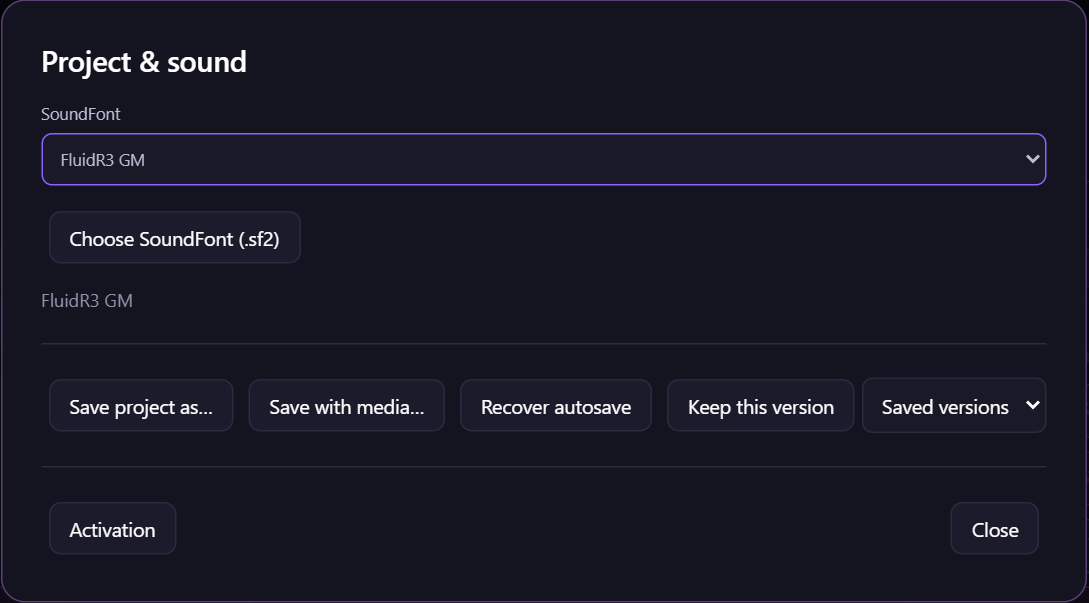
Figure 5. Use Project & sound to save another copy or collect the project and its media.
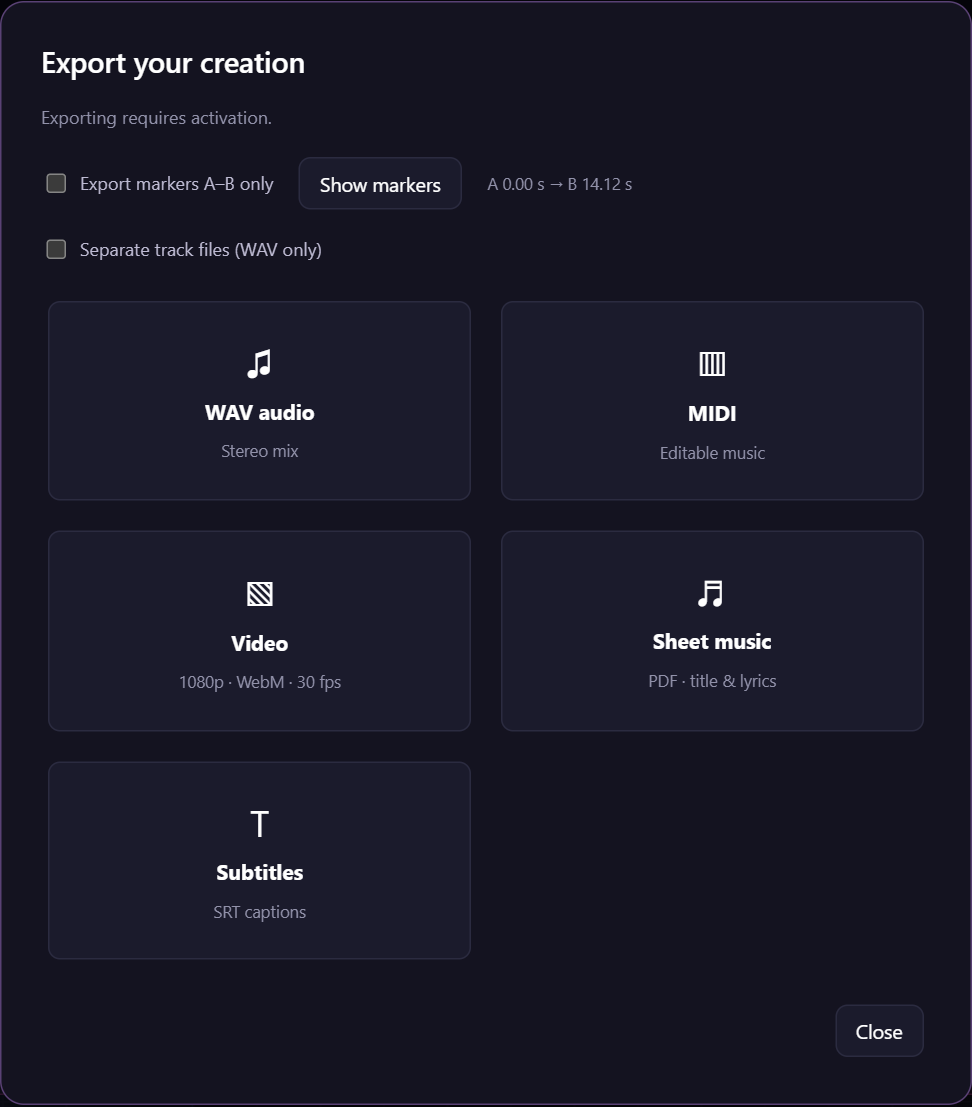
Figure 6. Choose the output format in Export ↗. This window also includes A–B range and separate audio-file options.