
Your first edit
User guideAfter creating or importing music, click Shape at the top, or Open timeline beside the composition.
Listen and select
- Press Play to hear the project.
- Click the ruler above the tracks to move the playhead.
- Select a track or clip. Its available settings appear in Inspector.
Change the music
- Clip position: drag left or right on the timeline.
- Clip duration: drag its left or right edge.
- Notes: double-click a MIDI or voice clip to open Piano roll. Drag notes vertically to change pitch, or horizontally to change timing.
- Instrument: select a MIDI track and open the list beside Instrument in Inspector.
- Volume: select the track and adjust Volume in Inspector.
- Speed: change BPM in the bottom bar. Higher values mean faster music.
Listen again and save
Press Play after an edit. Use Undo or Ctrl+Z if you dislike the result. Ctrl+Y restores an undone change. Click Save to keep your work.
Settings in Create prepare the next composition. To change existing music, use Shape and the bottom-bar BPM.
See the notes more clearly
Increase Time zoom or Note size. Use Expand for a larger editing area and Fit to see the full clip.
On screen: Tracks and notes
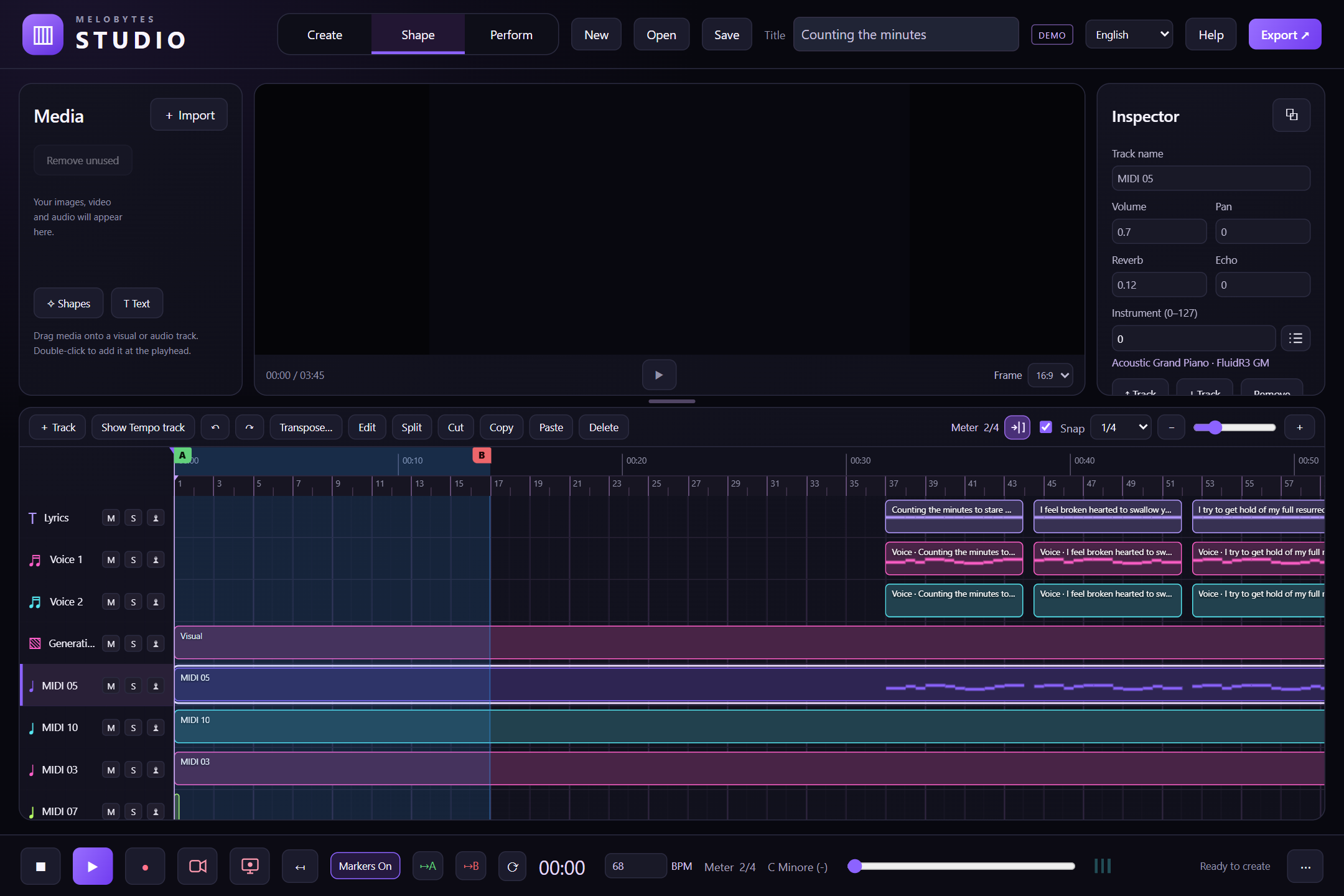
Figure 3. Select tracks and clips on the timeline. Inspector is on the right. A–B markers define a range.
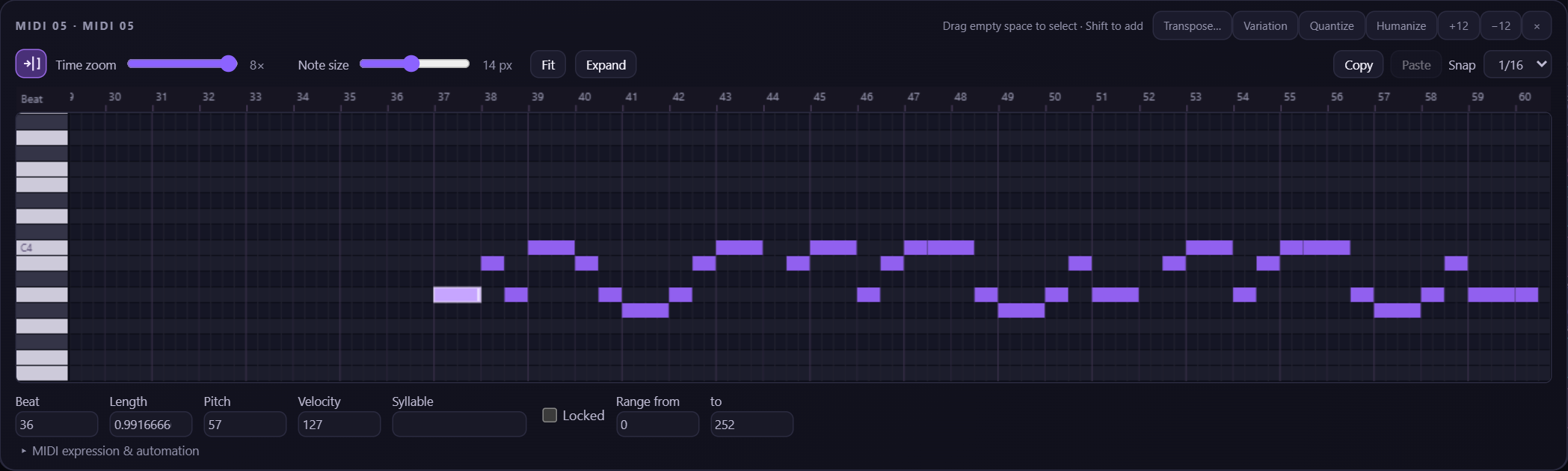
Figure 4. Double-click a musical clip to open its notes. Select a note to change its pitch, position or duration.