
Your first composition
User guideClick New, enter a Title and open Create. The four choices run from left to right in this order.
01 — Lyrics to Song
- Choose Lyrics to Song and type or paste your lyrics. To try a sample, select Use example.
- Set the lyrics' Language and choose Voice 1. To use two singers, enable and choose Voice 2 too.
- Choose Tempo, Meter, Key and Scale, or keep the defaults.
- Click ✦ Generate song. When it finishes, press Play.
Put [Verse] or [Chorus] on a separate line before a section to mark the song structure. These labels are not sung.
02 — Instrumental
- Choose Instrumental.
- Choose the musical character, Duration in minutes and musical settings.
- Click ✦ Compose music and listen.
03 — Image to MIDI
- Choose Image to MIDI.
- Click Choose image or drag an image into the selection area.
- Set Tempo, click Generate from image and listen.
04 — MIDI Lab
- Choose MIDI Lab, the last option on the right, and open or drop a MIDI file. Its tracks appear automatically.
- To add singing, enter lyrics, choose their language and singers, and select a melody track for each enabled voice.
- Open Lyrics & pronunciation… to check pronunciation and syllables.
- Click Apply voices. To edit only the music, continue without adding lyrics.
On screen: Lyrics to Song
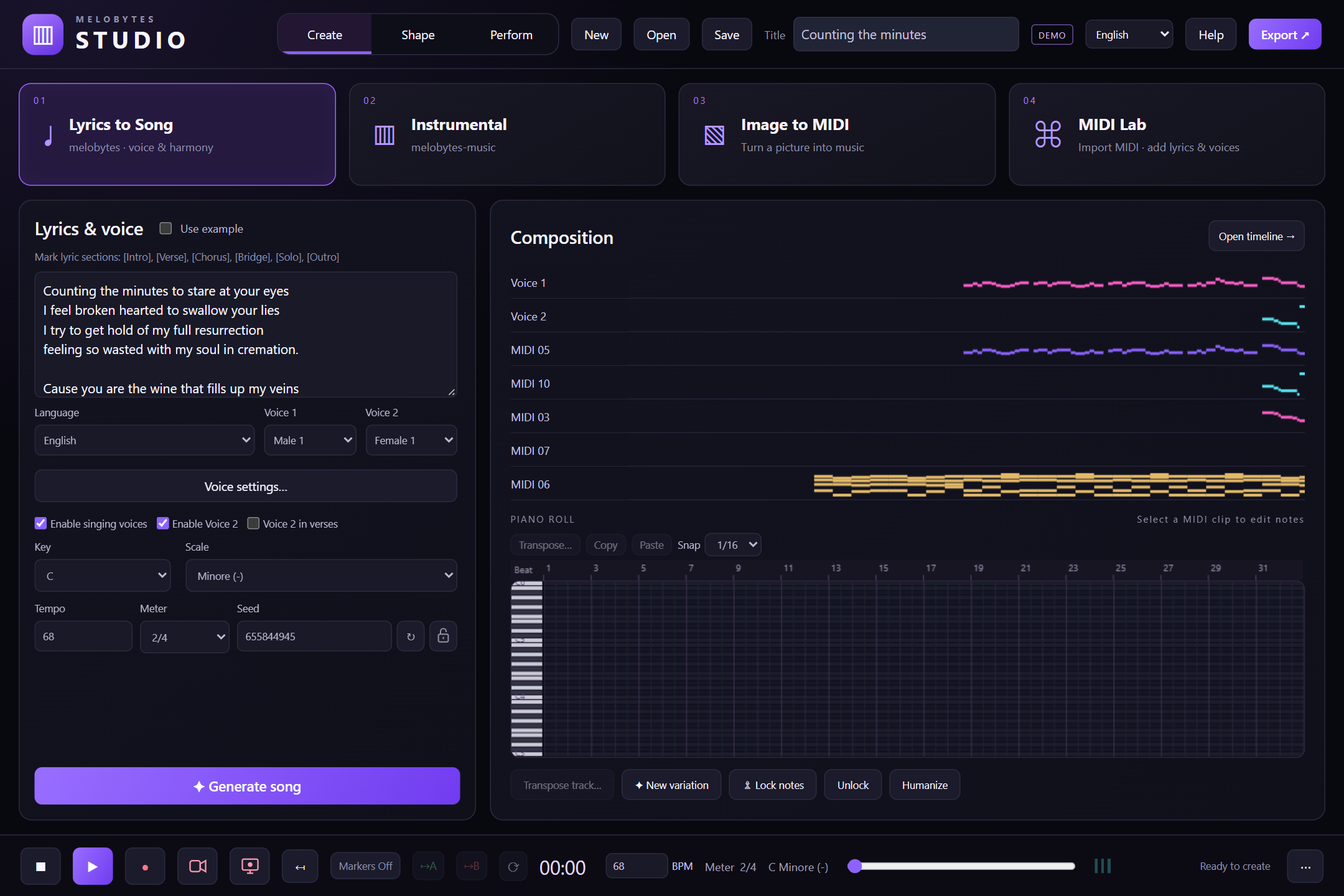
Figure 1. Enter lyrics, select their language and voices, then click ✦ Generate song.
- Left: enter lyrics and choose the language and singers.
- Below the voices: adjust the musical settings.
- Generate song: starts composition. The result appears on the right.
- Open timeline: takes you to project editing.
On screen: Adding lyrics to MIDI
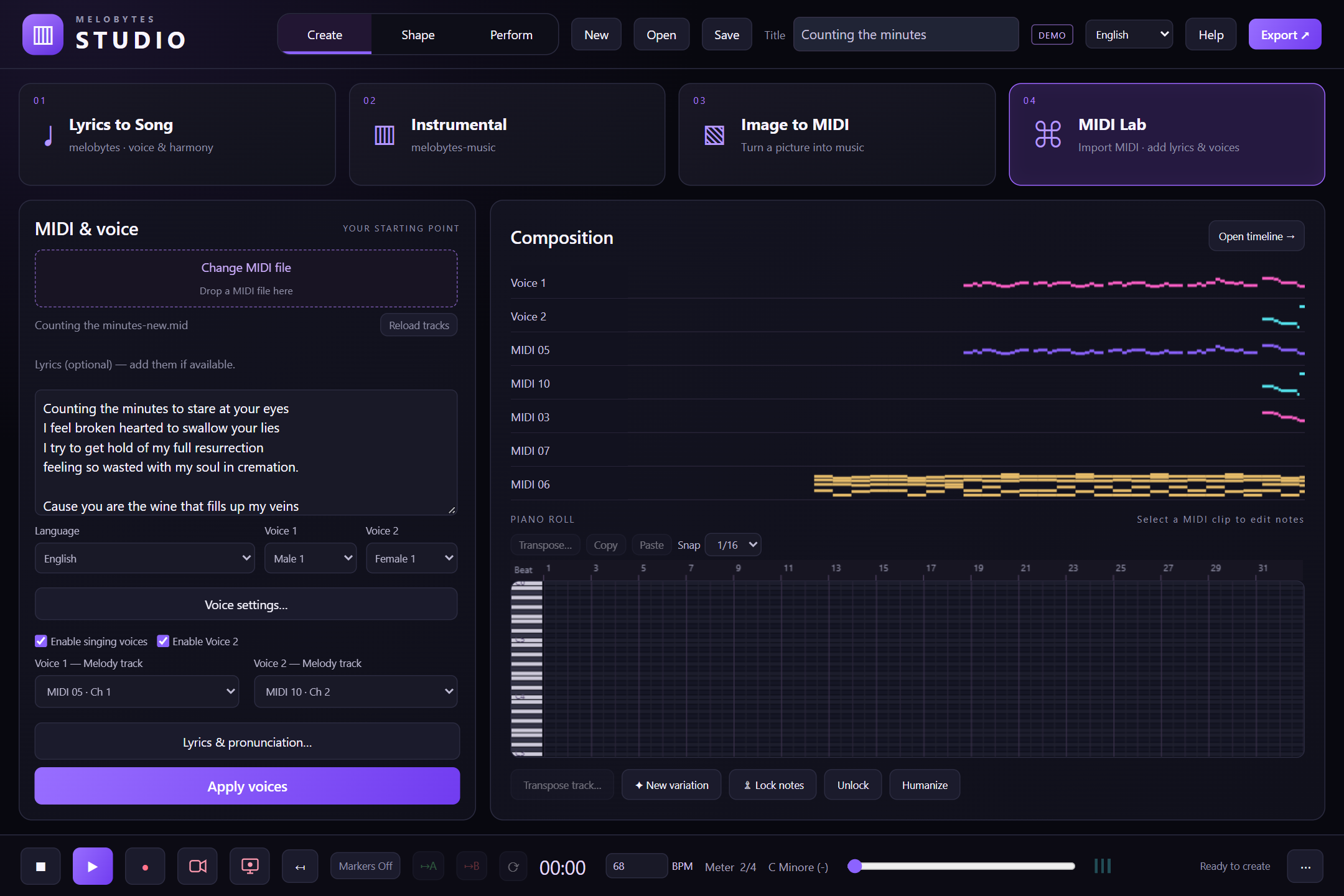
Figure 2. Open a MIDI file, add your lyrics, and choose the voices and their melody tracks.
- Select a MIDI file in the upper-left area.
- Enter lyrics and choose the language and singers.
- Select the melody track for each voice.
- Open Lyrics & pronunciation… to check and correct pronunciation.
- Click Apply voices to hear the lyrics sung over the music.