
Getting to know the program
User guideStart with the workspace and menus. The task-based questions later in this guide explain individual jobs in more detail.
gsDXF2gCode brings drawing, machining preparation and preview into one project. You can open a DXF/DWG, draw parts, generate shapes and arrange them on a sheet. Choose a suitable post-processor, define the operations, calculate, inspect and export. Save the .gscam project to keep an editable job.
Screenshots show the English interface. The same controls are available in the selected application language; some shape parameters retain their English names. The examples illustrate the workflow, not material-specific cutting settings.
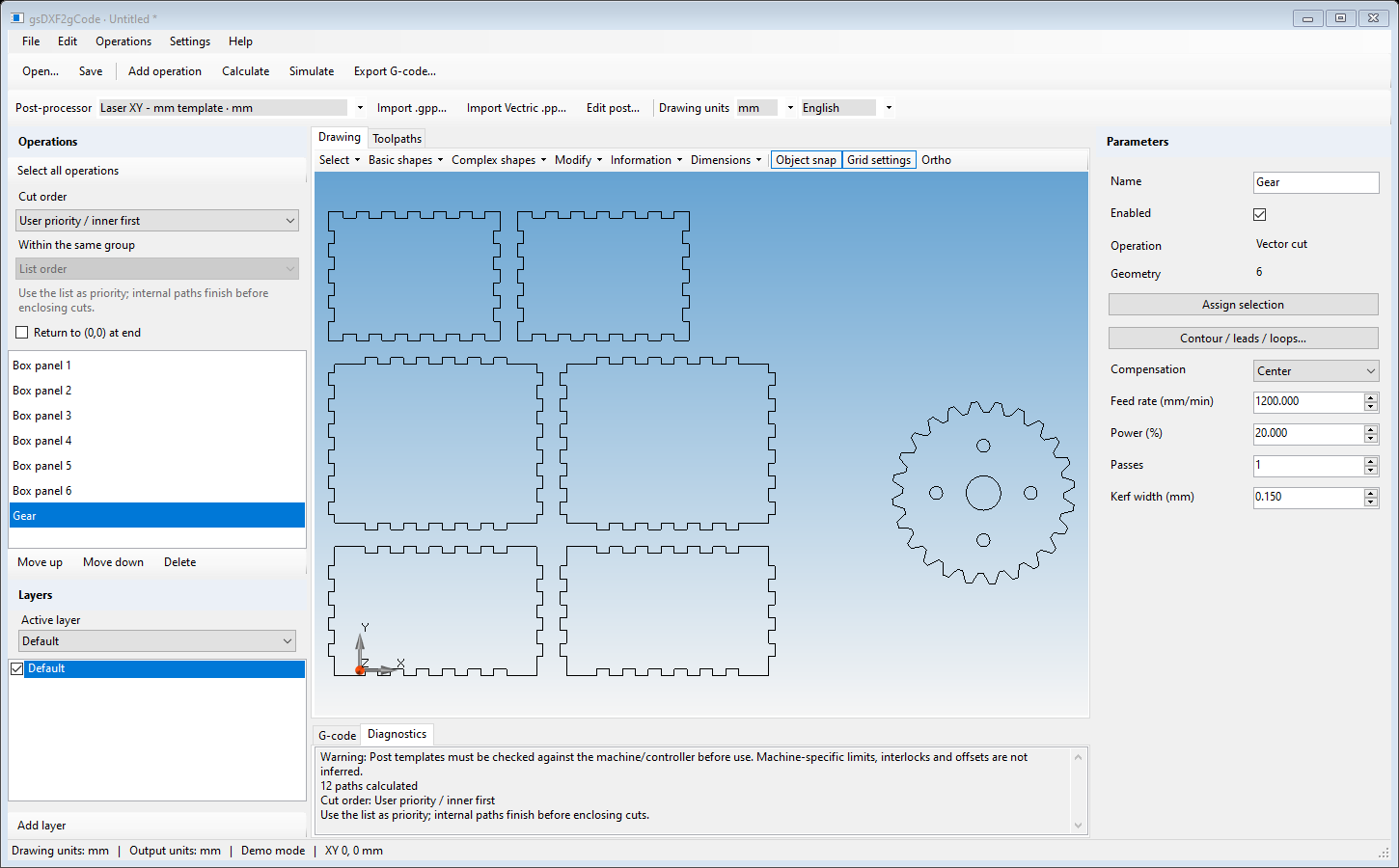
Areas of the window
| Drawing | Create, select, edit and measure drawing objects. |
| Toolpaths | Inspect calculated machining paths and run the simulation. |
| Operations / Parameters | Select an operation on the left to edit its process settings on the right. Move up/down changes its priority or manual order. |
| Layers | Organize objects. Checkboxes control visibility; Active layer receives newly drawn objects. Add layer creates another layer. |
| G-code / Diagnostics | Generated machine text and calculation messages. G-code text and exports require activation. Read Diagnostics after every calculation. |
The main menus
| File | New, Open, Save, Save as, Export DXF and Exit. Save preserves the complete job; Export DXF exchanges drawing geometry. |
| Edit | Undo, Redo and Select all. Ctrl+Z undoes supported edits; Ctrl+Y redoes them. |
| Operations | Add operation, select operations, assign selected geometry, calculate, export G-code and edit contour/leads/loops. |
| Settings | Set/reset work origin, choose curve output, edit the post, configure snaps/grid and the default operation for DXF import. |
| Help | Open this PDF guide (also F1), visit the Gardos Software site, activate/deactivate the license and see About/version. |
The upper toolbars
Open and Save manage files. Add operation prepares machining; Calculate updates the paths; Simulate previews the job; Export G-code writes the machine file. The next row selects the post-processor and offers Import .gpp, Import Vectric .pp and Edit post. Drawing units and language are on the same row. Zoom to fit is on the drawing/toolpath control itself.