
Drawing and machining functions
User guideGeometry describes the part. An operation specifies what the machine will do to that geometry.
Tools under Drawing
| Select / Basic shapes | Choose a picking mode or draw lines, polylines, rectangles, circles, arcs, ellipses, splines and text. Esc cancels the current command. |
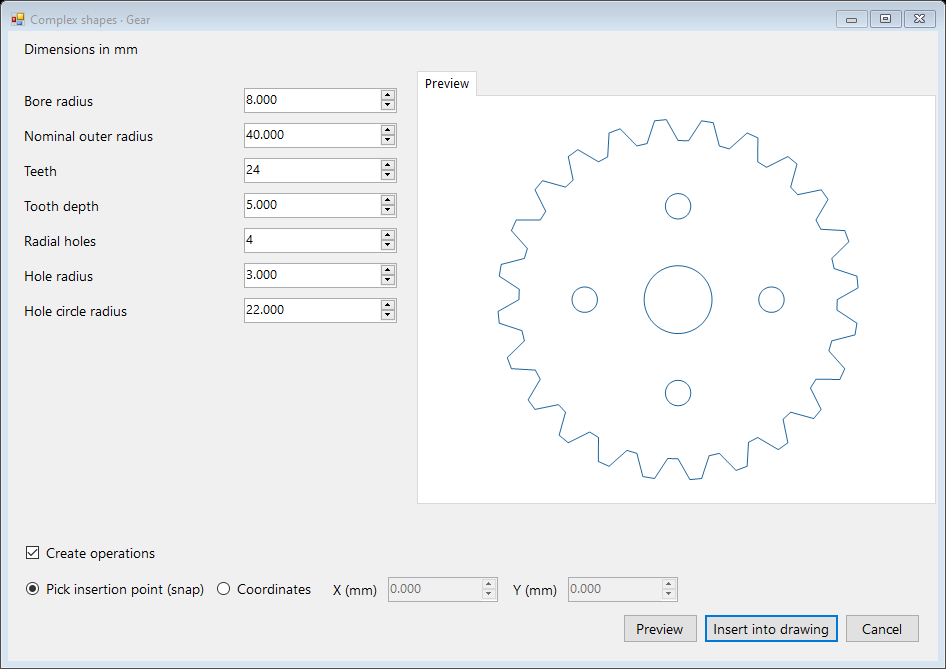
| Complex shapes | Import file at an insertion point; create parametric parts, finger joint boxes, gears, polygons, text and triangles. Includes nesting and Pipes. |
| Modify | Delete, move, copy, rotate, scale, mirror, offset, trim, extend, fillet, chamfer and explode. Change layer moves selected objects to another layer. |
| Information / Dimensions | Inspect length/details, area/perimeter and vertex coordinates. Add linear, aligned, radial, diameter, angular, ordinate or leader dimensions; use temporary dimensions for checks. |
| Object snap / Grid / Ortho | Use snaps for exact geometric points, configure grid appearance and spacing, and use Ortho for horizontal/vertical drawing. |
Types of operation
| VectorCut / VectorEngrave | Follow a contour for cutting or line engraving. Check feed, power, passes and compensation. |
| HatchEngrave | Fill a closed area with parallel engraving paths. Hatch spacing and angle set the pattern. |
| Profile / Pocket | Router operations for contour machining or clearing an area. Set tool diameter, final depth, step-down, feed and safe Z. |
| Punch | Apply the configured punch command at generated positions. The post and command must suit the machine. |
Available operations depend on the selected post. Automatic operations can already exist after import or shape insertion: inspect the list before adding another Cut. Cut order controls inner-first priorities, grouping, manual order or alternating distant cuts. Return to (0,0) adds a final return to the job origin, not a machine homing cycle.
Nesting and Pipes
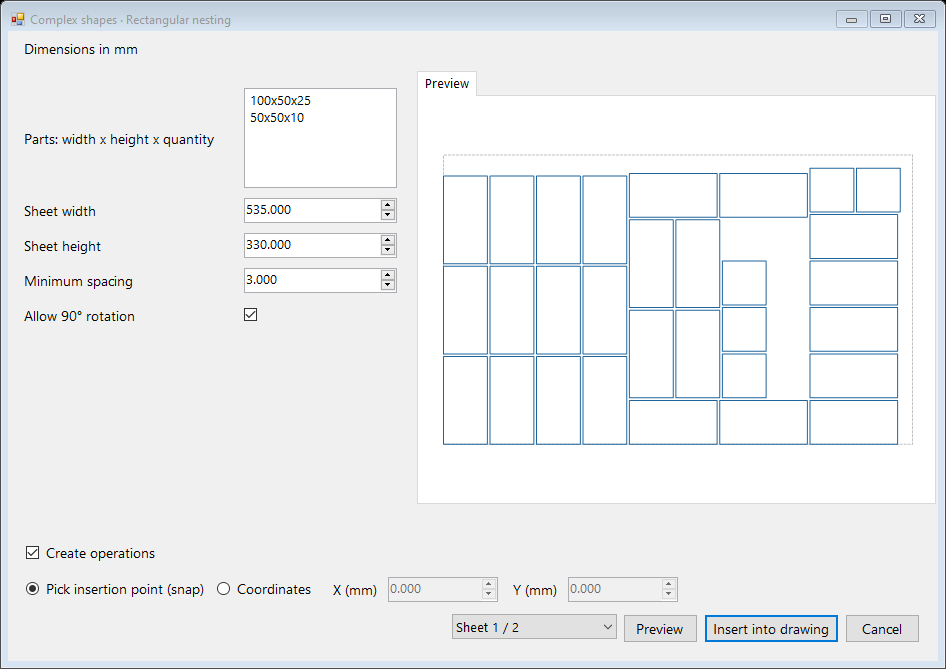
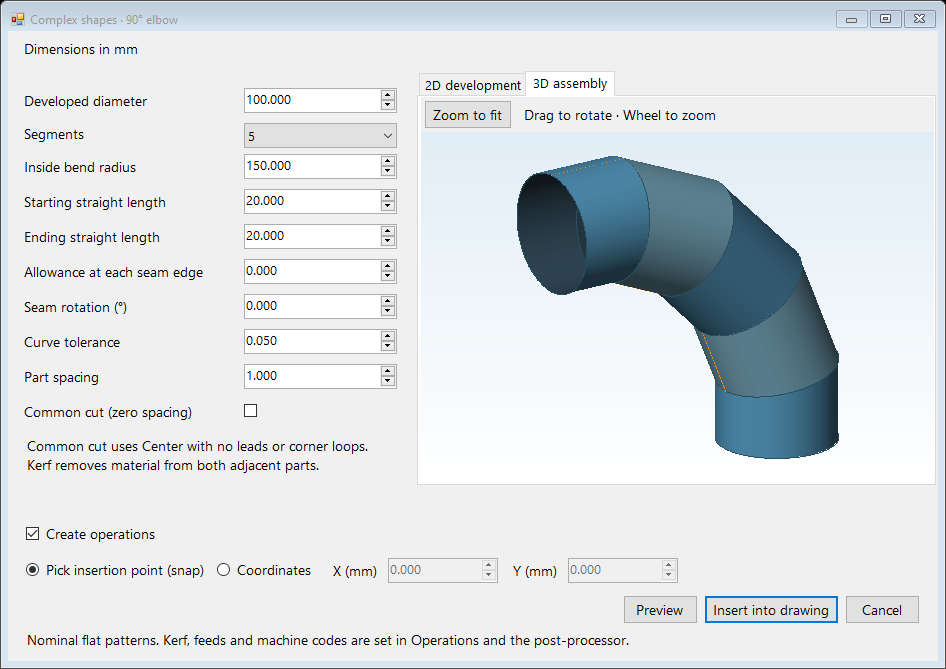
DXF nesting arranges imported drawing parts. Pipes creates flat developments for cylinders, elbows, S/U bends and intersections. Set the dimensions and preview both the 2D development and the assembled 3D shape. Inserting a pipe adds its flat contours to the drawing. Common cut is available for supported bend layouts; inspect shared cuts and compensation before calculation.
Calculate and simulate
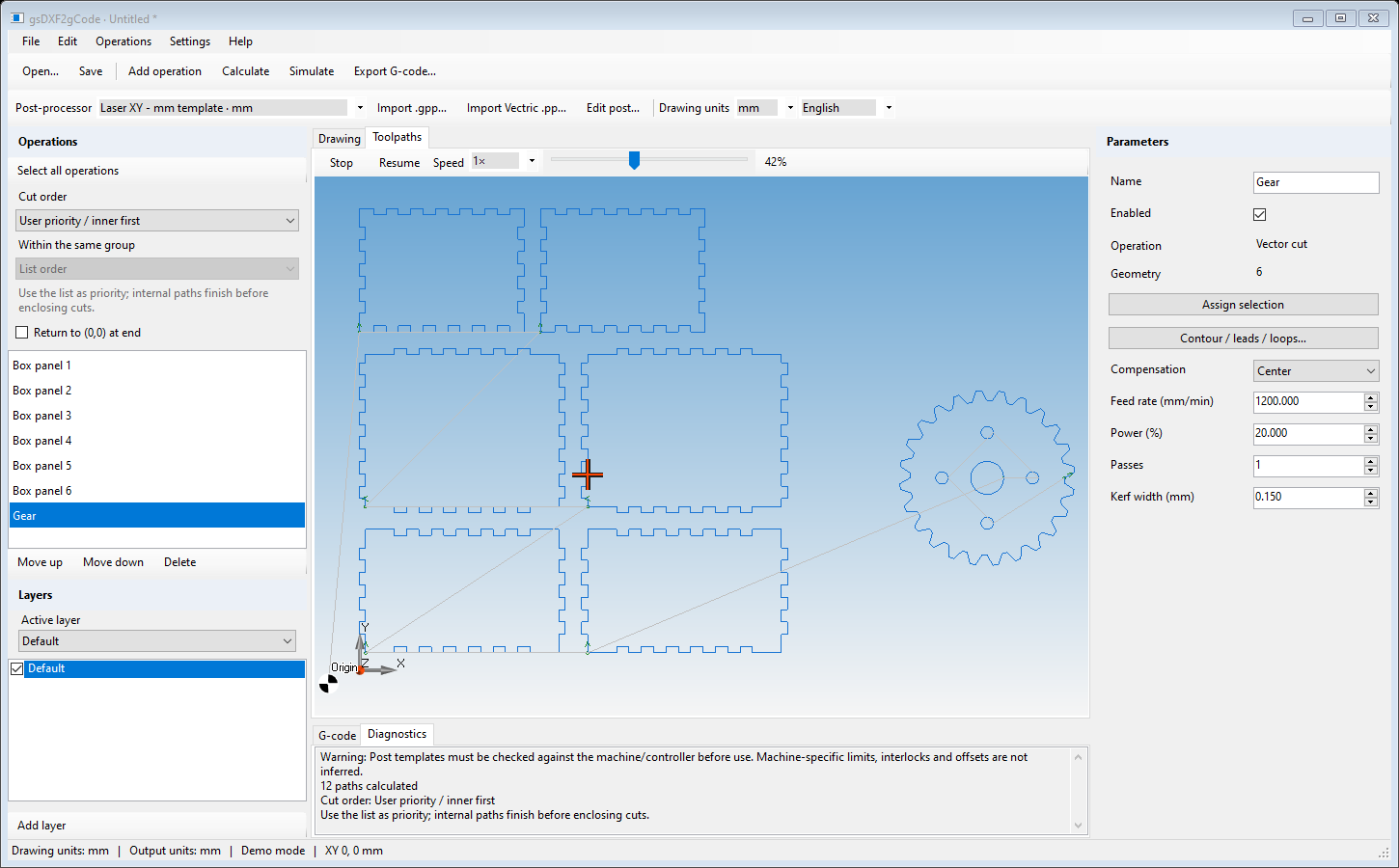
Calculate again after changing geometry, operations or the post. Use Restart/Stop and Pause/Resume, adjust Speed and drag the progress slider to inspect any part of the job. The crosshair marks the current position. Simulation shows the calculated paths; it is not a machine-controller emulator for arbitrary custom commands. Save the project before exporting.