
Find your way around
User manual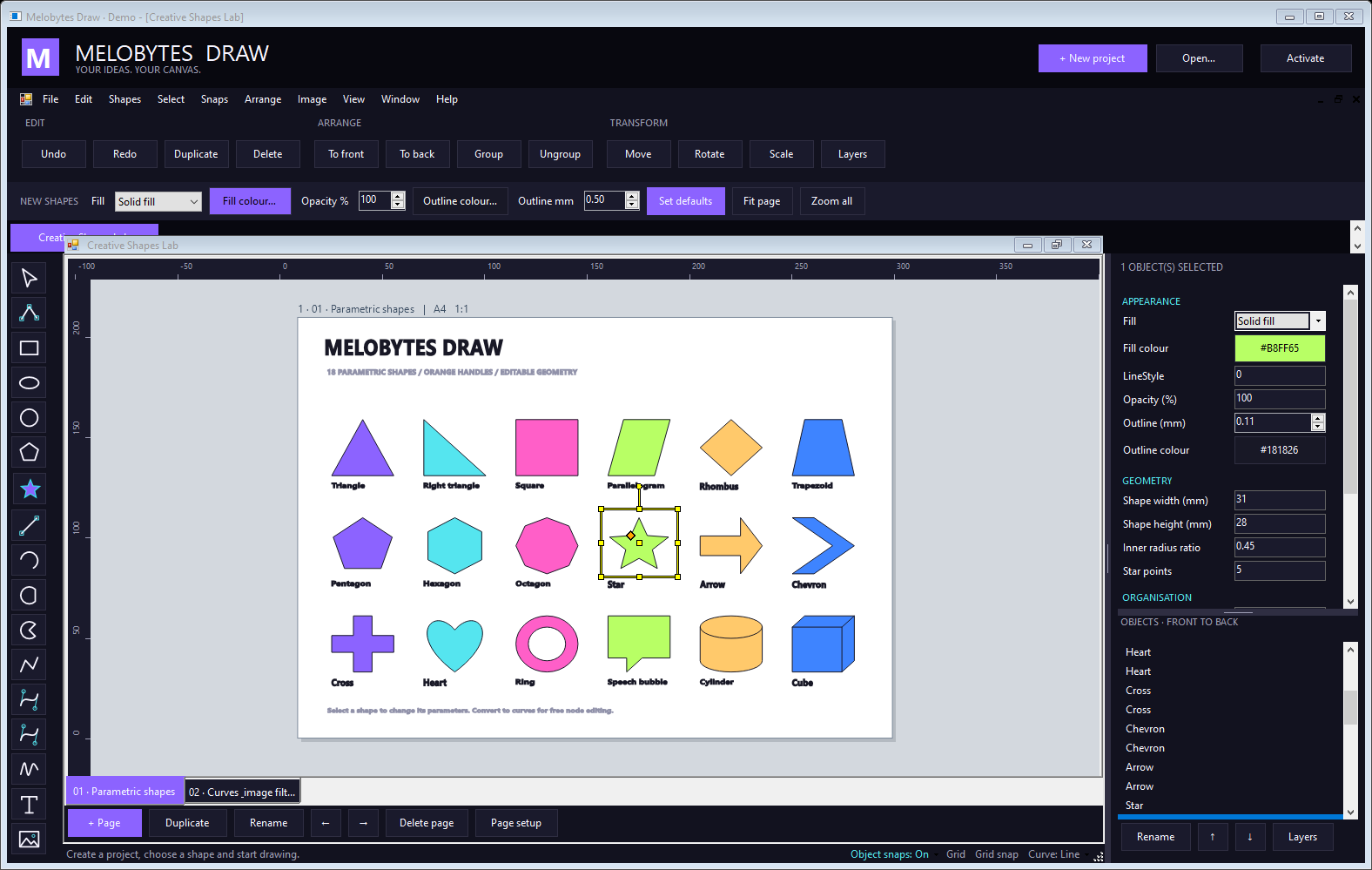
| Area | Purpose |
|---|---|
| Top menus and buttons | Create, open and save projects; choose drawing, editing, output and view commands. |
| NEW SHAPES | Set fill, opacity, outline and line-style defaults for future objects. |
| Left toolbox | Start selection, shape, curve, text and image tools. Hover for a tooltip. |
| Drawing and rulers | Work on the active page. Fit page frames the paper; Zoom all includes artwork outside the paper. |
| Properties / Objects | Edit the selection or page; select and reorder objects from front to back. |
| Bottom controls | Switch/manage pages and configure object snaps, grid and compound-curve segment mode. |
Drag with the right mouse button to pan. A right-click without dragging opens the editing menu. Drag the sidebar's left divider to change its width, or the horizontal divider inside it to give Properties or Objects more space.